

SEO
Website Migration SEO Checklist: Keep Your Traffic and Tracking
Reviewed by Abdel Tefridj · Chief Executive Officer
On this page
The short answer: what belongs on a website migration SEO checklist?
A website migration SEO checklist keeps traffic and tracking intact by mapping every old URL to its closest new URL with server-side 301 redirects. It then covers canonicals, internal links and sitemaps, and re-tests Google Tag Manager, GA4 and Google Ads conversions on staging and again after launch. Finally, it has you monitor Search Console and conversion statuses daily for the first weeks.
Most migration losses come from two places: URLs that no longer resolve to an equivalent page, and tags that stop firing on the new templates. The first costs rankings; the second hides the leads you still get. This checklist treats both as one launch plan.
Website migration checklist: what to check and the red flags
A safe website migration checks SEO and tracking items before and after launch, because a staging pass can still fail in production. Use this table as your launch checklist.
| Area | Check before launch | Check after launch | Red flag |
|---|---|---|---|
| URL mapping | Every indexed, linked or converting URL has a mapped target | Crawl the old URL list and confirm each target | Old URLs returning 404 or sent to the homepage |
| Redirects | Server-side 301 or 308 rules written and tested on staging | Status codes and hop count | 302s, JavaScript redirects, chains or loops |
| Canonicals and hreflang | Self-referencing canonicals on new URLs | Spot-check templates with URL Inspection | Canonicals pointing to staging or the old domain |
| robots.txt and noindex | Staging blocks documented for removal | Live robots.txt and meta robots | Site-wide disallow or noindex left in place |
| Sitemaps | New sitemap of final URLs ready | Submitted in Search Console | Sitemap listing old or redirected URLs |
| Google Tag Manager and GA4 | Container on every template; key events mapped | Events tested in DebugView | Missing or duplicate key events |
| Google Ads conversions | Conversion tags and thank-you URLs updated | Status shows Active | Misconfigured or Awaiting conversions |
| Ad final URLs | Final URLs updated to new pages | No ads pointing at redirects or 404s | Disapproved ads or landing page errors |
| Internal links | Links updated to final URLs | Crawl for links hitting redirects | Navigation still linking to old URLs |
The SEO rows follow Google’s site move guide (Google Search Central). The tracking rows reflect DBM practitioner checks, using Google’s own testing tools.
Before launch: benchmark, map, redirect and audit tracking (steps 1-5)
The first five steps happen before any DNS or template switch, and they decide most of the outcome. Tracking checks sit beside SEO checks at each stage.
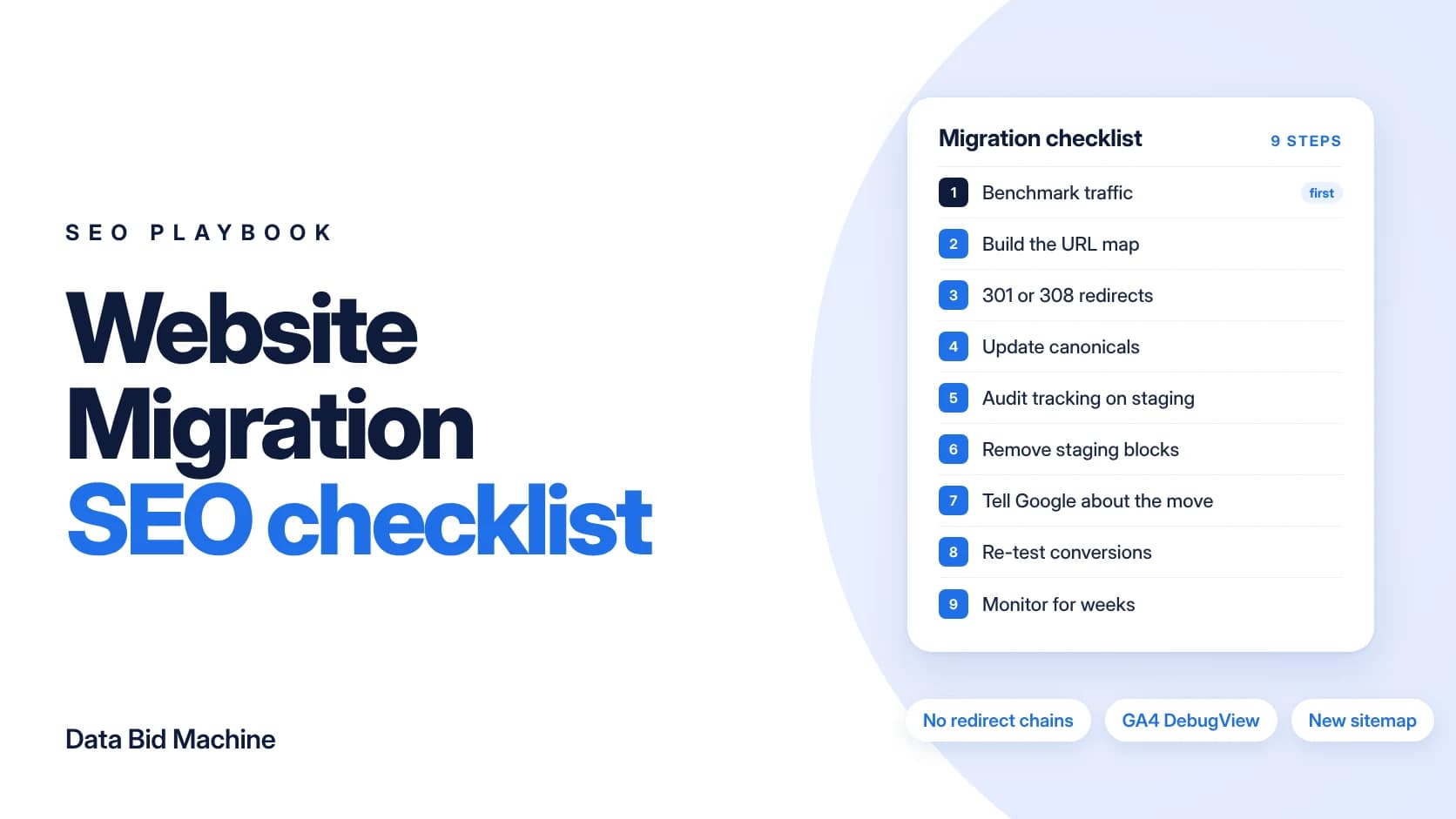
1. Benchmark traffic, rankings and conversions
A pre-migration benchmark is the record you compare against after launch. Export Search Console clicks and impressions by page, GA4 sessions and key events by landing page, and Google Ads conversions by action. Save the top pages by clicks, links and conversions as your priority list.
2. Build the URL map
The URL map pairs every old URL with its closest new equivalent. Google recommends starting with important URLs from sitemaps, analytics and server logs, and including images, videos, JavaScript and CSS (Google Search Central). Return 404 or 410 for content you are not carrying over.
3. Implement server-side permanent redirects
Server-side permanent redirects pass users and search engines straight to the new URL. Google recommends 301 or 308 redirects where possible and treats client-side redirects as a last resort. Redirect each URL directly to its final destination, with no chains.
4. Update canonicals, hreflang, internal links and sitemaps
On-site signals must point at the new URLs, or Google receives mixed messages. Google says each new URL should have a self-referencing canonical, and hreflang annotations should use the new URLs. Update navigation and body links so they skip redirects, and build a sitemap of final URLs. A migration is also a good moment to fix structure; our guide to website architecture for SEO covers hubs, links and URL patterns.
5. Audit tracking on staging
Tracking audits on staging catch broken tags before they cost you data. Confirm the Google Tag Manager container loads on every template and that triggers still match new URLs, form IDs and button classes.
- GA4: check page views and key events in DebugView, which shows events from the last 60 seconds (GA4 Help).
- Google Ads: update conversion tags and any thank-you page URL rules.
- Offline imports: confirm the GCLID or lead source fields still reach your CRM.
Launch and after: unblock, notify Google, re-test and monitor (steps 6-9)
The last four steps start on launch day and continue until traffic on the new URLs settles against your benchmark.
6. Launch and remove staging blocks
Launch day is when staging restrictions can leak into production. Remove migration-only robots.txt blocks and noindex tags, then crawl the live site. Google notes that a missing robots.txt file should return a proper 404.
7. Tell Google about the move
Telling Google about the move speeds discovery of the new URLs. Submit the new sitemap in Search Console once the move starts, and keep Search Console verification working on the new site. For a domain or subdomain change, submit a Change of Address for the old site (Google Search Central).
8. Re-test conversions after launch
Post-launch conversion tests confirm that real leads are still being recorded. Submit test forms and calls, then check GA4 DebugView and the Google Ads conversion summary. Google Ads shows Awaiting conversions when nothing is recorded in 7 days, and Misconfigured when recording stops entirely (Google Ads Help).
9. Monitor for several weeks
Post-migration monitoring compares daily data against your benchmark until traffic settles. Google says traffic should fall on the old site and rise on the new one, and recommends watching server access and error logs. Keep redirects for at least one year.
- Search Console: check the Sitemaps, Page indexing and Performance reports for the new URLs.
- Server logs: look for 404s and redirect errors on old URLs.
- Google Ads: watch for landing page errors and conversion status changes.
- GA4: compare key events by landing page with your benchmark.
How long recovery takes and what to measure
Expect a temporary wobble: Google says rankings may fluctuate while it recrawls the site, and a medium-sized site can take a few weeks or more to settle, with larger sites taking longer (Google Search Central). A clean URL map and direct redirects give Google the clearest signals during that period.
What to measure:
- Organic clicks to new URLs versus your benchmark, by priority page.
- The share of old URLs that redirect correctly in a single hop.
- 404 counts in server logs and Search Console.
- Conversions by action in Google Ads and key events by landing page in GA4.
If organic clicks have not returned toward the benchmark once the settling period has passed, run a full crawl and review. Our step-by-step SEO audit checklist shows what to check.
Common website migration mistakes that lose traffic or tracking
Most migration losses trace back to a short list of avoidable mistakes, each of which appears as a red flag in the checklist above.
- Redirecting everything to the homepage: Google advises against sending many old URLs to a single unrelated page. Map each URL to its closest equivalent, or return 404 or 410.
- Using temporary or chained redirects: 302s, JavaScript redirects and multi-hop chains send weaker, slower signals than one direct 301 or 308.
- Leaving staging blocks live: a site-wide disallow or noindex carried into production can stop crawling of the new site.
- Removing redirects too early: Google advises keeping redirects for as long as possible, and generally at least one year.
- Assuming tags still fire: new templates, form IDs and thank-you URLs can silently break GTM triggers and Google Ads conversions, so leads keep arriving but stop being counted.
- Forgetting paid media: ad final URLs that hit redirects or 404s waste spend and can trigger landing page errors.
Next steps
Plan the URL map and the tracking tests together, before launch day. DBM’s SEO management team can build the URL map and launch checklist, and our revenue measurement service focuses on keeping conversion data accurate.
Not sure where your current site is leaking? In a Growth Gap Analysis, a senior strategist reviews visibility, media, conversion paths, tracking and outcome quality, including where your numbers double-count, under-count or miss conversions entirely. You get prioritized findings in plain English, ranked by impact and effort.
Sources
Sources accessed October 29, 2026.
Frequently asked questions
How long does traffic take to recover after a website migration?
Traffic recovery after a website migration usually takes a few weeks or more for medium-sized sites, according to Google. Larger sites take longer, and rankings may fluctuate while Google recrawls. A clean URL map and direct redirects give Google the clearest signals.
Should I use 301 or 302 redirects for a site migration?
Use 301 or 308 permanent redirects for a site migration. Google recommends server-side permanent redirects wherever possible. Temporary 302 redirects signal that the move is not final.
How long should I keep redirects after a migration?
Keep redirects for as long as possible, and generally for at least one year, according to Google. Removing them early sends users and links to dead pages. Also update your own links and high-value external links to the new URLs.
Do I need the Change of Address tool for an HTTPS migration?
No, you do not need the Change of Address tool for an HTTP to HTTPS migration. Google says the tool is only for domain or subdomain changes. It is not needed for www changes or path changes within the same domain.
Why did my conversions drop after a website migration?
Conversions often drop after a migration because tags, triggers or thank-you page rules no longer match the new site. Check Google Ads conversion statuses for Misconfigured or Awaiting conversions, and test key events in GA4 DebugView. Then submit test forms and calls to confirm each action records.
Can I redirect all old pages to the homepage?
No, you should not redirect all old pages to the homepage. Google advises against sending many old URLs to one unrelated page. Map each URL to its closest equivalent, or return 404 or 410 if no equivalent exists.
About the author: Abdul Hafeez
Contributor, Data Bid Machine
Abdul Hafeez writes about automation, PPC, SEO automation, and practical systems that help marketing teams turn campaign insights into action. His articles explore paid-search strategy, workflow automation, and more efficient ways to manage and improve search marketing.